
Those who use Anyrail software to design their layouts will know about a little feature called Print, which will allow you to print the trackplan in 1:1 scale. However, if like me you have a track plan covering your whole room hitting print will print the whole room including the dead space in the aisle. Thats a lot of waste so we want to try and reduce that as much as possible.
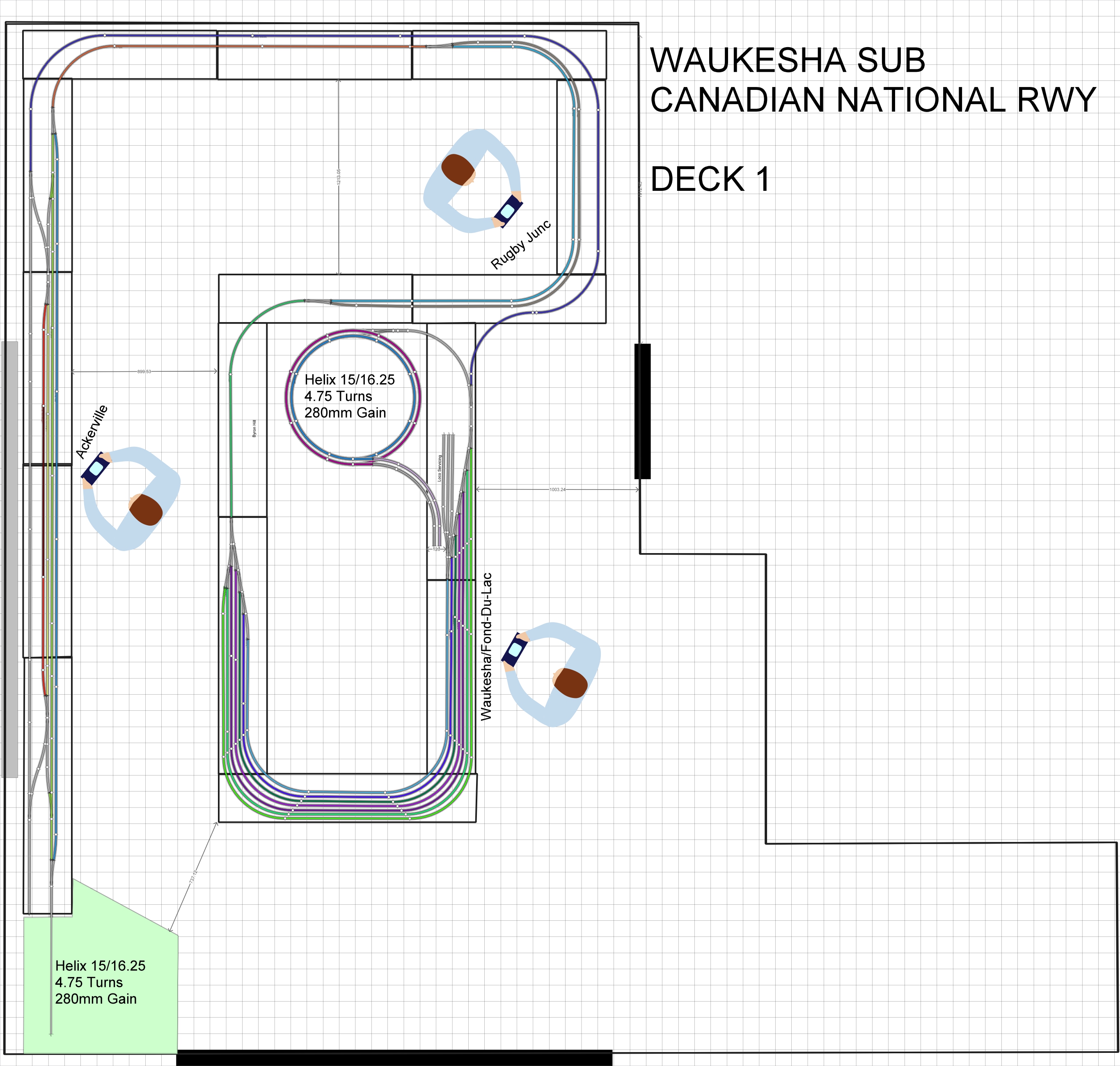
To do that we are going to take each section of the layout and copy it into its own anyrail project that won’t waste paper when we print it off.
The first section we’ll do is Ackerville, thats the section on the left hand side of the track plan where the WSOR interchanges with the CN.
Step 1
Open a new Anyrail Project and change the work area settings to be the size of the Ackerville boards
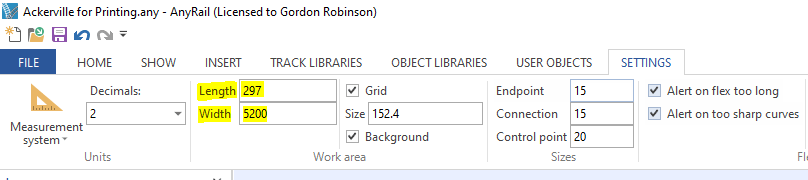
Step 2
Also make sure that both projects measurements systems are in the same unit of measure in this case Metric decimal units (mm)
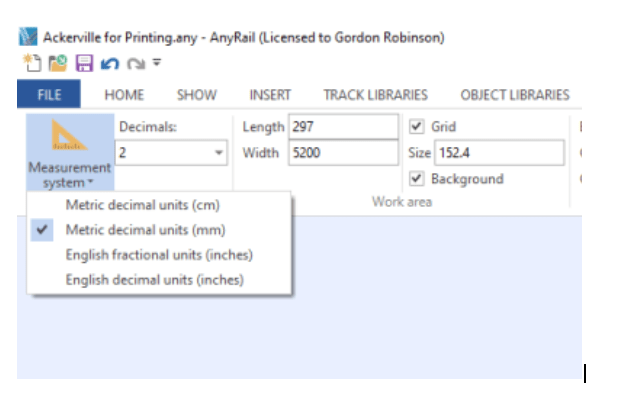
Step 3
Highlight the area on the original plan that you want to copy across. Once highlighted use CTRL+C to copy the area.
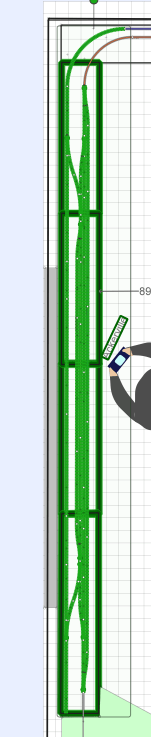
Step 4
Go over to your new project and use CTRL+P to paste the items. Line it up with your work area and then you should have something that looks like this.
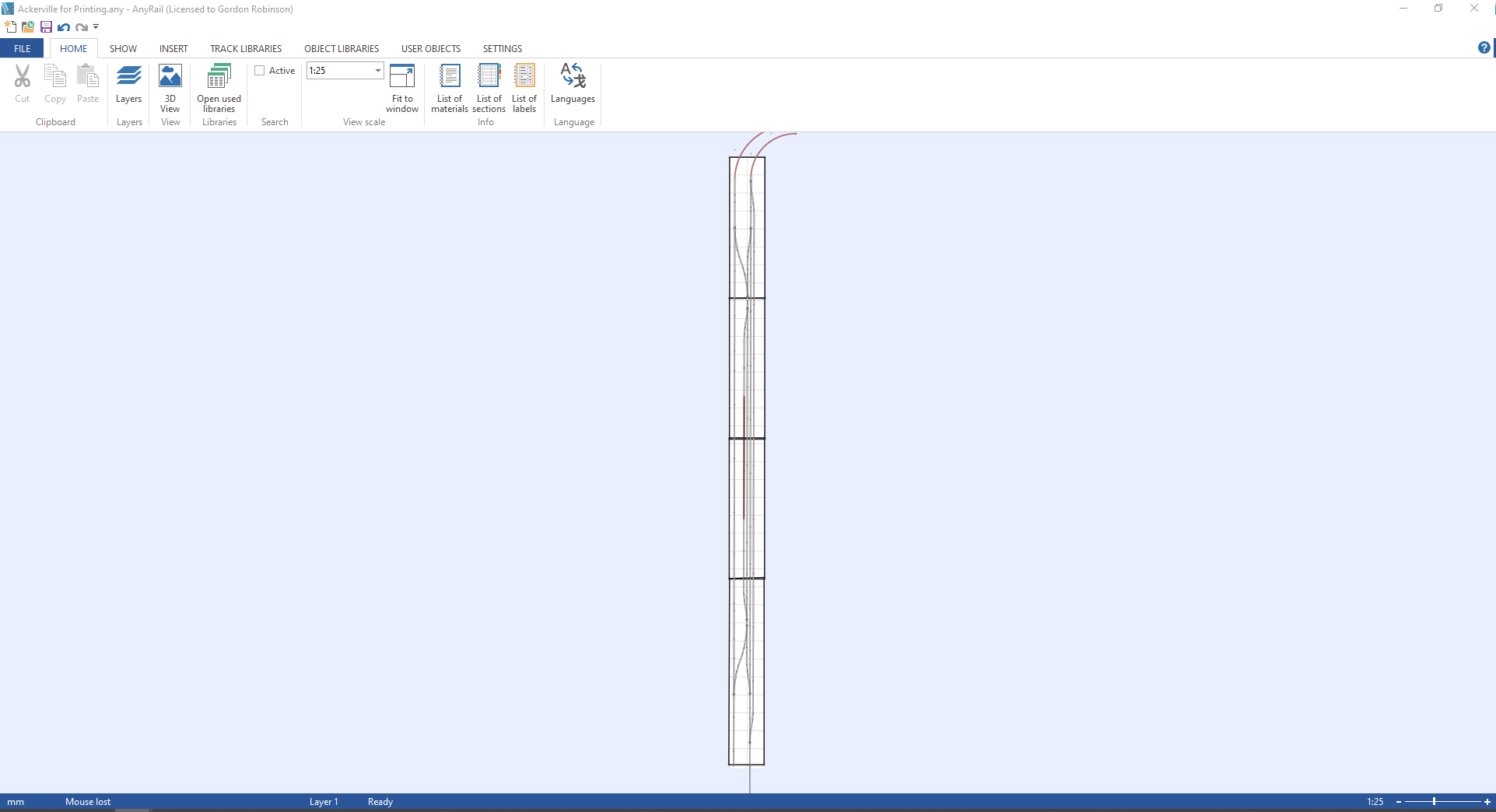
Step 5
ok we are ready to print. Go to File>Print
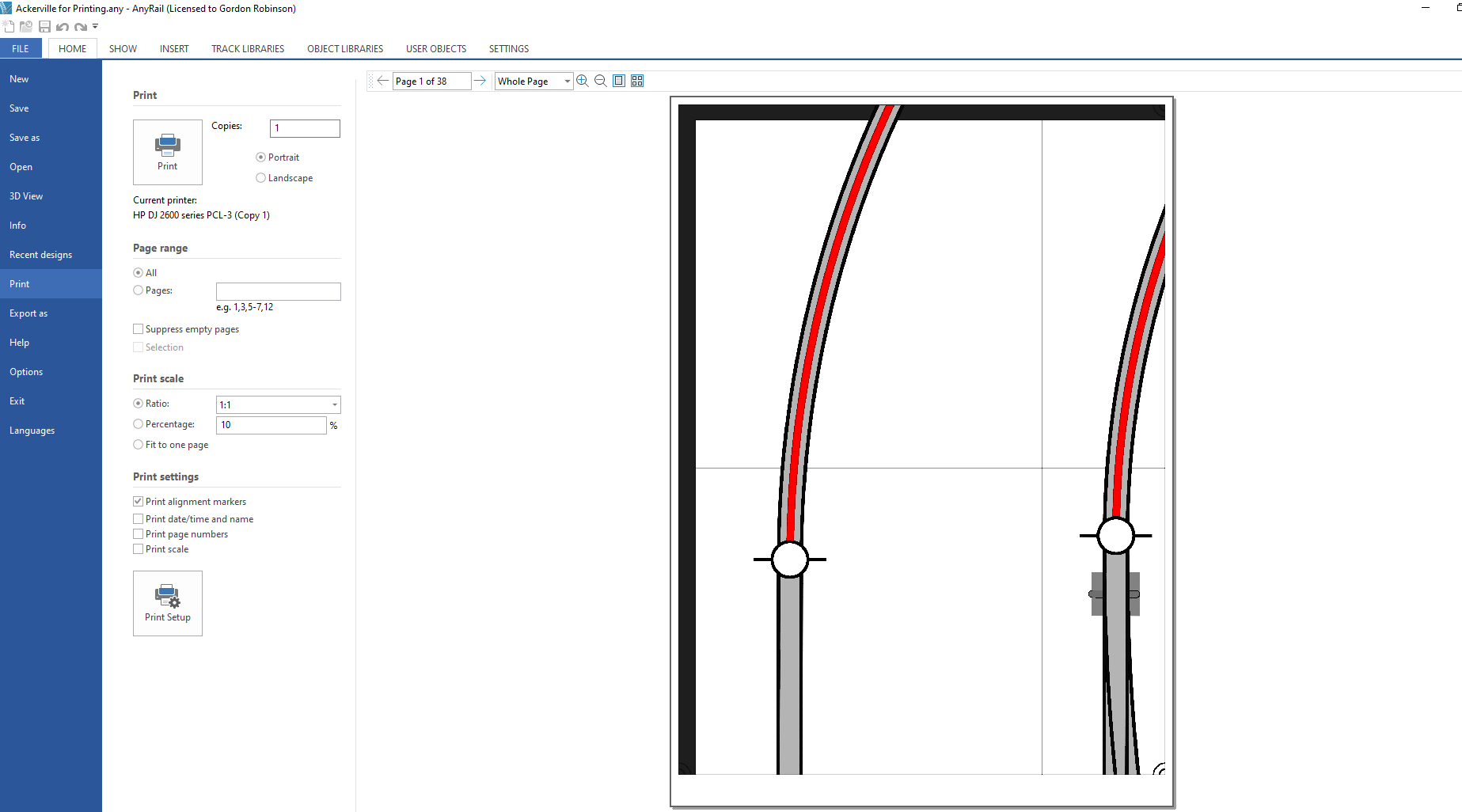
Step 6
All we need to check now is the print settings.By default Anyrail is set to print off at a scale of 1:10 so you’ll need to change that to 1:1. Next uncheck the ‘Print date/time and name’ and ‘Print page numbers’ . The final thing to do is go to Print Setup and make sure that you have the size of paper in your printer selected.
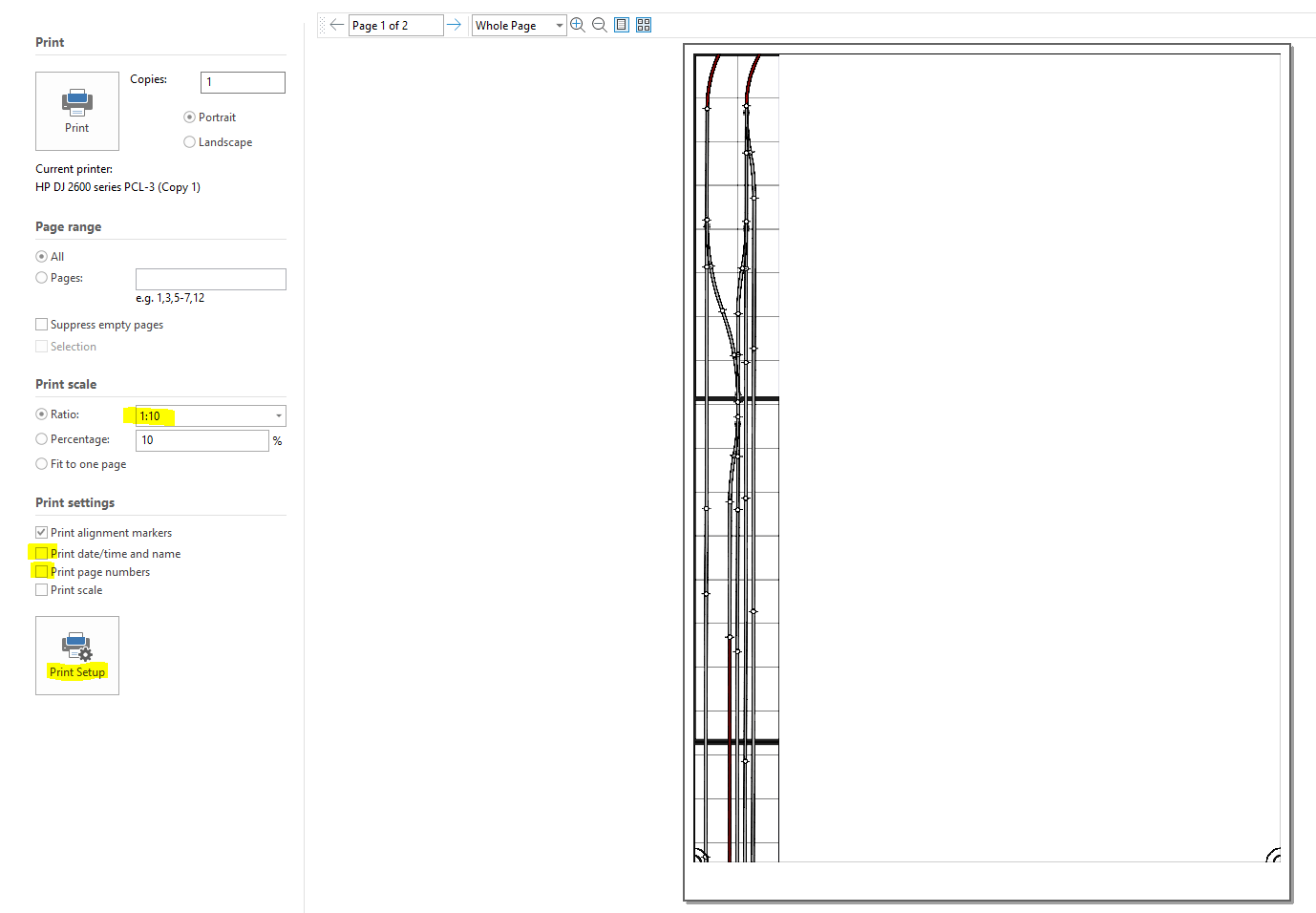
Well thats it you can hit print and in my case we’ll get 38 pages that we can use to accurately mark out where the track will go and start planning scenery on this section of the layout. Printing the whole plan would have been 782 pages.
Well till next time folks hopefully we can get some time in the train room tomorrow to dismantle the layout and get those supports fitted.
 Gordy's | Model Railroads